
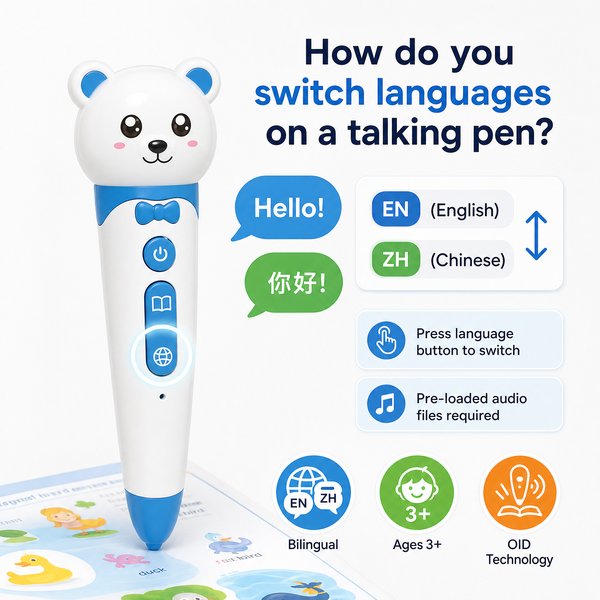
BLUF: To switch languages on a talking pen like Toyvao’s OID children’s reading pen, press the dedicated language button on the pen body — but the pen will only switch to languages that already have audio files pre-loaded on the device. No app, Wi‑Fi, or internet is required; language switching is an offline button action that cycles through the preinstalled language audio packages.
When it’s worth caring about / When you don’t need to overthink it
When it’s worth caring about
- You need multi‑language support in the classroom or for bilingual programs — confirm how many languages are preinstalled and whether additional languages can be added before purchase (storage options: 16GB / 32GB / 64GB matter).
- You plan to use the pen with students who require fast language switching during lessons — hardware with a dedicated language button is faster and more reliable than app-based switching.
- You require offline, secure playback (no Bluetooth/Wi‑Fi) for privacy or restricted network environments — Toyvao’s pen works entirely offline and requires no app.
- You want custom language audio or branded content for OEM/ODM runs — MOQ is 100–500 pcs for custom builds, so plan ahead and request preloading from the factory.
When you don’t need to overthink it
- Your use is single‑language only — any single‑language pen with the correct audio package will suffice.
- You don’t need translation, OCR, or word‑by‑word scanning — Toyvao’s OID reading pen is designed for OID‑coded books and audio playback, not translation or general text scanning.
- You don’t require wireless connectivity or an app — the pen’s offline operation simplifies deployment and reduces support overhead.
How language switching works (step‑by‑step)
- Confirm the pen has the target language audio files pre‑loaded. Toyvao pens must have the audio files installed at manufacture or provided by the vendor.
- Power on the pen and open the book or touch the activation area on the first page (activation is done by touching the pen tip to the book cover or printed activation area — no internet or app required).
- Press the dedicated language button on the pen body to cycle to the next available language. The pen will play a short prompt or sample audio in the selected language (behavior may vary by model).
- Test with an OID‑coded page or code — only OID‑coded books or recording stickers will trigger the correct audio files.
Important product facts you’ll want to record in procurement notes
- Device type: Toyvao children’s reading pen (OID technology) — works OFFLINE; NO Bluetooth, NO Wi‑Fi, NO app required.
- Age range: Ages 3+.
- Storage options: 16GB / 32GB / 64GB (choose capacity based on number of language packs and custom audio content).
- Battery: 8–12 hours playback; charging time 2–3 hours via USB‑C.
- Audio I/O: 3.5mm headphone jack; volume adjustment button on body.
- Recording stickers: OID‑coded stickers allow up to 10–15 seconds per sticker; tapping records and re‑tapping plays back; re‑recording overwrites previous clip.
- Activation: Touch pen tip to book cover or printed activation area; only supports OID‑coded books.
- Limitations: NOT a translation pen, NOT a scanner/OCR pen for arbitrary text.
- Firmware updates: Via USB‑C to PC — download firmware from manufacturer website and copy the firmware file to the pen’s root directory.
- MOQ for custom OEM/ODM: 100–500 pcs.
- Certifications: CE / FCC / RoHS / EN71 / ASTM / UN38.3.
| Feature | Toyvao OID Reading Pen (offline) | App‑based talking pen | Translator / OCR pen |
|---|---|---|---|
| Language switching method | Dedicated language button; cycles pre‑loaded audio | App or device button; may download languages over internet | Automatic language detection / app interface |
| Internet required | No (offline) | Often yes (downloads, updates) | Usually yes for cloud translation/recognition |
| Storage options | 16GB / 32GB / 64GB | Varies; often smaller local storage + cloud | Varies |
| Recording / custom voice | Recording stickers: up to 10–15s each | May support recordings via app | Limited |
| Use case best fit | Preloaded classroom/retail packs, secure offline environments | Home users wanting companion app features | On‑the‑go translation / business use |
Customer feedback synthesis (B2B buyer style)
Positive
- “Good for classrooms — the language button makes switching during lessons fast and reliable; children pick it up quickly.”
- “Factory preloading saved us time. We ordered a bilingual batch (Spanish + English) and deployment was plug‑and‑play.”
- “Robust battery (8–12h) and simple offline operation reduced IT overhead in our schools with restricted networks.”
Negative / Concerns
- “Needed an extra language after delivery — we had to reorder the factory preload. Would prefer easier user‑level language import.”
- “Not a translator. Some teachers expected word‑by‑word scanning and were disappointed — you must verify the pen’s intended use (OID book audio only).”
- “Volume and UI are basic; if you want app features or remote management you’ll need a different product line.”
FAQ
Q: Can I add or change languages on the pen after purchase?
A: The pen switches only among languages for which audio files are present on the device. For most Toyvao deployments, languages are preloaded at the factory for OEM/ODM orders. For custom language packages or post‑sale additions, contact the manufacturer or your supplier — some models may support loading audio packs or firmware via USB‑C, but plan this as a pre‑sale request for bulk orders.
Q: Do I need Wi‑Fi or an app to switch languages?
A: No. Toyvao’s OID reading pen works offline and uses a dedicated language button on the pen body. No Bluetooth, Wi‑Fi, or app is required to switch or play languages.
Q: Will the pen translate printed text between languages?
A: No. This is not a translation or OCR pen. It plays pre‑recorded audio linked to OID‑coded books and recording stickers. It cannot scan or translate arbitrary printed text.
Q: How do I update firmware or audio files?
A: Firmware updates are done by connecting the pen to a PC via USB‑C, downloading the firmware file from the manufacturer website, and copying it to the pen’s root directory. For audio or new language packages, coordinate with the supplier/manufacturer to obtain the correct files and installation instructions — Toyvao can assist for OEM/ODM orders.
Next steps / Procurement checklist
- Confirm which languages must be preloaded and whether factory preloading is included in your MOQ (Toyvao OEM/ODM MOQ 100–500 pcs).
- Specify storage capacity (16/32/64GB) based on number of language packs and custom audio content.
- Request sample units for classroom testing: verify language button behavior, activation with your OID books, battery runtime (8–12h), and charging (2–3h via USB‑C).
- Confirm certifications required by your market: CE / FCC / RoHS / EN71 / ASTM / UN38.3 are available.
For factory‑direct quotes, preloading options, and technical support, contact Toyvao: WhatsApp +86 186 8106 4480, email sales@toyvao.com, or visit https://toyvao.com.
