
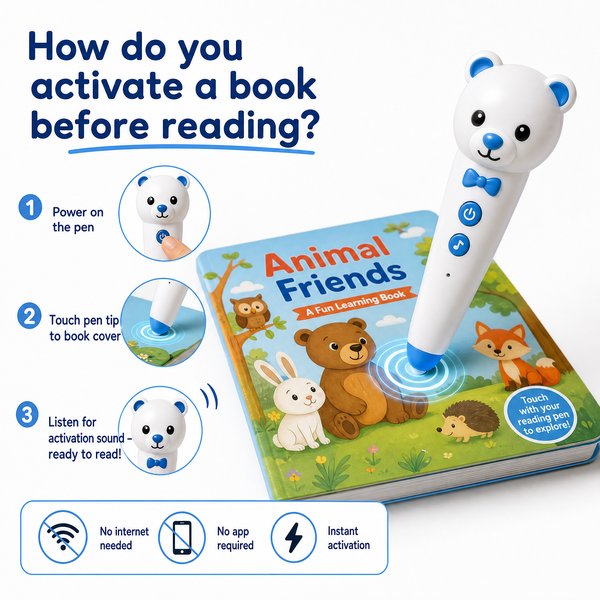
BLUF: To activate a book before reading with Toyvao’s children’s reading pen, simply power the pen on and touch the pen tip to the book cover or the special activation area printed on the first page — the pen reads the OID code on the book and plays the correct audio immediately. No internet, app, Bluetooth, or Wi‑Fi is required; activation works fully offline and only with OID‑coded books or Toyvao recording stickers.
When it’s worth caring about / When you don’t need to overthink it
Activation method (OID coded books)
When it’s worth caring about: If you need rock‑solid, instant activation without network dependencies (for classroom or low‑connectivity environments), care about OID‑coded books. Toyvao’s pen reads the OID code on the cover or first page and starts the right audio immediately — ideal for ages 3+ and group reading.
When you don’t need to overthink it: If you only need casual single‑home use and don’t mind an app or Bluetooth pairing, an app‑based audio solution might be acceptable. But for predictable offline classroom use, OID is simpler and more reliable.
Language switching and multilingual classrooms
When it’s worth caring about: If you require on‑device multiple languages, verify the pen has the language audio preloaded before shipping. Toyvao pens switch languages with a dedicated language button — no app required. This is important for bilingual programs; language files must be preloaded on the unit.
When you don’t need to overthink it: If each pen will be used in a single language classroom, standard preloaded single‑language units are fine and simpler to manage.
Recording stickers and personal audio
When it’s worth caring about: If you want personalized voice notes for student encouragement or remote parent messages, use the special OID recording stickers. Children or parents press the pen tip on the sticker to record (up to 10–15 seconds per sticker). Tap again to play; re‑recording replaces the previous message. This is useful for practice prompts or positive reinforcement.
When you don’t need to overthink it: If you only need built‑in narration, you don’t need stickers — just activate the book and the pen plays preloaded audio.
Firmware updates, customization and procurement
When it’s worth caring about: If you operate a large rollout or plan custom languages/content, plan for offline firmware and content updates. Firmware is updated by connecting the pen to a PC via USB‑C, downloading the firmware file from the manufacturer, and copying it to the pen’s root directory. MOQ for custom OEM/ODM units is typically 100–500 pcs — important for procurement planning.
When you don’t need to overthink it: For small single‑school purchases, standard factory models with preloaded content and standard certifications (CE/FCC/RoHS/EN71/ASTM/UN38.3) are ready to use out of the box.
Quick step‑by‑step: How to activate a book
- Power on the pen (ensure battery charged — 2–3 hours charging time via USB‑C; battery life 8–12 hours typical).
- Confirm the book is OID‑coded (look for the OID mark or special activation area printed on the first page).
- Press the pen tip gently on the book cover or the printed activation area — hold for a second until you hear a confirmation tone.
- Pen plays the associated audio. Use the volume button to adjust. Switch languages with the dedicated language button if multiple language files are preloaded.
- To play personalized notes, press the pen tip onto a Toyvao recording sticker, record up to 10–15 seconds, then tap to play. Re‑recording replaces the previous file.
Activation method comparison
| Method | Internet/App Required | Activation Speed | Offline Reliability | Supported Content | Best for |
|---|---|---|---|---|---|
| OID pen (Toyvao style) | No | Instant (touch) | High | OID‑coded books, OID stickers | Classrooms, libraries, low‑connectivity sites |
| App / QR code download | Yes (initially) | Slow (download required) | Medium (depends on cached files) | App bundles, online audio | Home users with good internet |
| Scanner / OCR pen | Sometimes | Variable (scanning time) | Low to medium | General printed text (limited accuracy for children’s books) | Text extraction tasks, not ideal for pre-recorded book narration |
Customer feedback synthesis
- Positive: “Deployment was straightforward — teachers touched the pen to the cover and audio started instantly. Great for 30+ kids in a shared cart.”
- Positive: “Offline activation meant no classroom Wi‑Fi headaches. Battery lasted a full school day (8–12h) with intermittent use.”
- Positive: “Recording stickers are a simple way for parents to leave personalized messages — 10–15s is enough for praise or prompts.”
- Negative/Concern: “Only works with OID‑coded materials; we had to reprint some titles with activation areas which added lead time.”
- Negative/Concern: “No Bluetooth or app means remote content updates are a manual USB‑C process — plan logistics for firmware/content updates.”
- Negative/Concern: “Storage options (16/32/64GB) must be chosen ahead of time for large audio libraries; mid‑deployment upgrades require unit replacement or rework.”
FAQ
Q: Exactly where do I touch the pen to activate a book?
A: Touch the pen tip to the book cover or the special activation area printed on the first page (the OID mark). Hold briefly (1 second) until you hear the confirmation tone, then the pen will play the associated audio.
Q: What if the pen doesn’t respond when I touch the activation area?
A: Check that the unit is powered on and charged (2–3h charging time, 8–12h battery life). Confirm the book is OID‑coded. Try switching language with the language button in case the wrong language file is active. If still unresponsive, connect via USB‑C to a PC and check that the content files are present and firmware is up to date.
Q: Can I activate any printed book by scanning or using the pen as an OCR/translation device?
A: No. Toyvao’s reading pen only activates and plays audio for OID‑coded books and uses OID recording stickers for custom messages. It is not an OCR, scanner, or translation pen for general printed text.
Q: How do I add new language files or update firmware?
A: Firmware and content updates are done offline: connect the pen to a PC via USB‑C, download the appropriate firmware or audio package from the manufacturer’s website, and copy the file(s) to the pen’s root directory. For multilingual deployments, ensure language audio files are preloaded before shipping.
Compliance, procurement and supply notes
Toyvao offers factory‑direct supply and customization (MOQ 100–500 pcs for OEM/ODM). Units are certified CE/FCC/RoHS/EN71/ASTM/UN38.3. Storage options are 16GB, 32GB, and 64GB; there is no Bluetooth or Wi‑Fi — everything works offline. Keep these specs in your procurement checklist if you are buying for schools or distribution.
Ready to activate books at scale? Contact Toyvao as a factory‑direct solution for offline OID pens, custom content preloading, and OEM runs. WhatsApp: +86 186 8106 4480. Email: sales@toyvao.com. Website: https://toyvao.com
