
Bottom-Line-Up-Front (BLUF)
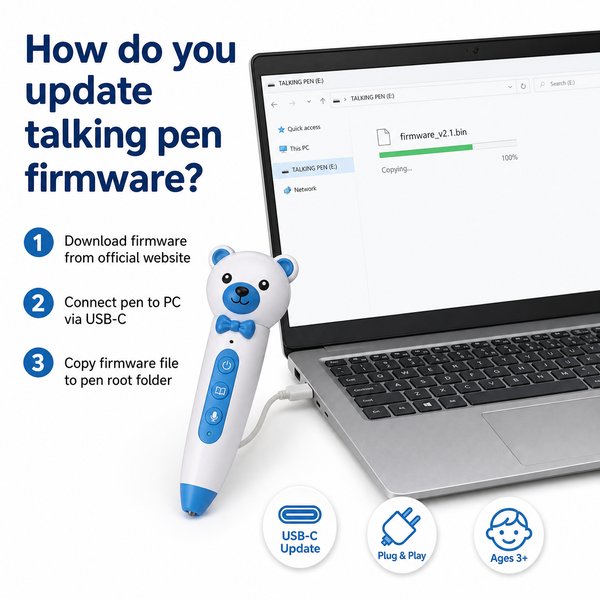
To update a Toyvao children’s talking/reading pen firmware: charge the pen, connect it to a PC via USB‑C, download the correct firmware file from Toyvao’s website, copy the firmware file to the pen’s root directory, safely eject and restart the pen. No internet, app, Bluetooth or Wi‑Fi is required during the update — the process is an offline USB copy that typically takes under 15 minutes end‑to‑end if you have the right file and a charged pen.
When it’s worth caring about / When you don’t need to overthink it
When it’s worth caring about firmware updates
- Security or bug fixes that affect playback or OID recognition — update promptly for classrooms in daily use.
- You need new language audio files preloaded for deployment (Toyvao pens switch languages with a dedicated button and require the language files to be present on-device).
- Preparing large deployments (MOQs 100–500 pcs): standardizing firmware across inventory reduces support calls and compatibility issues with OID-coded books or recording stickers.
- If you plan to distribute customized content or use recording stickers extensively (recordings up to 10–15 seconds), back up important custom audio before updating.
When you don’t need to overthink it
- Minor cosmetic updates that don’t affect functionality — these can wait until scheduled maintenance windows.
- Pens already running the current firmware and performing reliably in classrooms — no urgent action required.
- When a device is out of circulation for months and not being repurposed — update at next deployment instead of immediately.
Quick checklist (before you start)
- Confirm model and storage (16GB / 32GB / 64GB) and download the matching firmware file from https://toyvao.com.
- Charge the pen (battery life 8–12 hours; charging time 2–3 hours via USB‑C). Aim for >50% battery before updating.
- Backup any custom recordings stored on the pen if you need to keep them (recording stickers store short messages; re‑recording overwrites previous content).
- Have a Windows/Mac PC with a USB‑C cable and permission to copy files to attached drives.
Step‑by‑step firmware update (typical, Toyvao USB method)
- Download: Visit Toyvao’s support/downloads page and download the exact firmware file for your pen model and storage size.
- Prepare the pen: Ensure it has sufficient battery (charge 2–3 hours if needed). Turn the device off if recommended in the release notes.
- Connect: Plug the pen into a PC with a USB‑C cable — the pen will mount as an external drive (removable disk).
- Copy: Drag the firmware file into the pen’s root directory (do not place it inside folders). Follow any naming instructions from Toyvao (some builds require the file to be named exactly as specified).
- Eject: Safely eject the device from the OS and disconnect the cable.
- Install: Power the pen on (or follow the manufacturer note). The pen will detect the firmware file and install — allow several minutes. The pen typically reboots when finished and may play a confirmation sound.
- Verify: Confirm version per Toyvao instructions (check in-device prompts or re-connect to the PC to see updated version file). Test playback, OID book activation, language switching and recordings.
HTML comparison table: Update methods
| Method | What it requires | Typical total time | Pros | Cons |
|---|---|---|---|---|
| USB‑C to PC (Toyvao factory method) | PC, USB‑C cable, firmware file from Toyvao website | 5–15 minutes (download + copy + install) | Reliable, offline, no app or Wi‑Fi needed; scalable for batches | Manual process for each device; staff training required |
| Over‑the‑air (OTA) via App / Wi‑Fi | Wi‑Fi enabled device, companion app or cloud | 10–30 minutes depending on network | Convenient for remote updates, mass push possible | Not supported by Toyvao pens (no Wi‑Fi/Bluetooth); security and privacy considerations |
| Return to factory / Service center | Shipping logistics, service SLA | Days to weeks | Vendor-managed; useful for warranty repairs | Slow and costly for routine firmware updates |
Practical tips for B2B deployment
- Create a standard image and instructions for your procurement and IT teams so all units are updated before shipment to retailers or schools.
- Label batches with firmware version and preload needed language files — Toyvao pens switch languages via a dedicated button but require files to be present.
- Keep firmware release notes and file naming rules in a shared drive to avoid installing incorrect builds.
- For MOQ custom OEM/ODM runs (100–500 pcs), request Toyvao pre‑flash your chosen firmware build and language set to save time on-site.
- Maintain a rollback copy of the previous firmware in case a new release causes unexpected issues.
Customer feedback synthesis
Positive
- “Updating via USB‑C was straightforward — we roll new firmware onto 200 units in under a day using a single laptop and spare cables.”
- “Toyvao provided clear firmware files and release notes; preloading the language pack saved our logistics team a full week of setup.”
- “Offline updates are a plus for schools with strict network rules — no Wi‑Fi required, which simplifies compliance.”
Negative / Concerns
- “We wish there was an OTA option for remote sites — copying files by hand to many distributed classrooms is time‑consuming.”
- “Release notes could be more granular — we needed more detail about whether recordings would be preserved after updates.”
- “Some staff found the file‑naming requirement non‑intuitive; one batch didn’t update until we renamed the file exactly as specified.”
FAQ
- Do I need internet access to update the pen?
- No. The Toyvao firmware update process is offline: you download the firmware file once from the Toyvao website, then update devices by copying the file via USB‑C. The update itself requires no internet connection.
- Will firmware updating delete recorded messages from recording stickers?
- Firmware updates typically should not deliberately erase user data, but any file operation carries risk. For B2B deployments we recommend backing up any important custom recordings before updating, especially if recordings are part of custom content for a classroom.
- What if the update fails or the pen doesn’t boot afterward?
- First, reconnect to the PC and re-copy the firmware file following Toyvao’s instructions (ensure correct filename and file integrity). If the device still fails to boot, charge it fully (2–3 hours), try a different USB cable/port, and contact Toyvao support for recovery steps. Keep serial numbers and purchase details available for warranty/service handling.
- Can I push updates remotely (OTA) or via Bluetooth?
- No. Toyvao reading pens have no Bluetooth and no Wi‑Fi — they are intentionally offline devices. Firmware updates must be done via USB‑C to a PC.
Regulatory & procurement notes
- Toyvao pens meet CE / FCC / RoHS / EN71 / ASTM certifications and UN38.3 for battery shipping — useful for procurement and import compliance.
- MOQ for OEM/ODM is 100–500 pcs. Ask Toyvao about pre‑flashing firmware and language packs to reduce on‑site setup time.
Contact & next steps (strong CTA)
If you need firmware files, bulk pre‑flashing, or technical support for rolling updates across inventory, contact Toyvao directly. WhatsApp: +86 186 8106 4480 — Email: sales@toyvao.com — Website: https://toyvao.com. Reach out to arrange factory pre‑flashing for MOQs or to get the exact firmware package for your model and language set.
