
BLUF
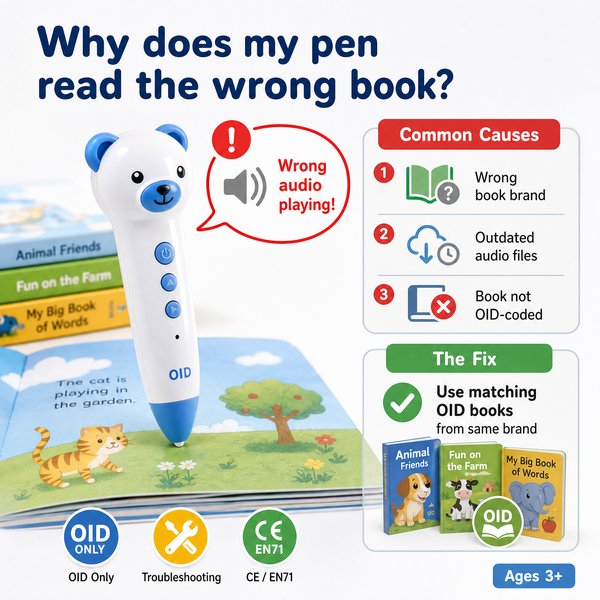
If your children’s reading pen is consistently “reading the wrong book,” the cause is almost always a mismatch between the pen’s OID-to-audio mapping and the OID code printed on the page. Toyvao’s children’s reading pen uses OID (object ID) technology and only works with OID-coded books — it is not an OCR/translation or scanner pen. Typical fixes: confirm you’re using the correct OID-coded title, check for damaged or swapped OID marks, reload the correct audio/content package to the pen (16GB/32GB/64GB storage), or update firmware. If problems continue, check model-to-book compatibility and contact Toyvao factory support for content pairing and bulk OEM/ODM help.
Why pens read the wrong book — quick causes
- OID mismatch: the OID on the page points to a different audio bundle than the one loaded on the pen.
- Damaged or dirty OID marks: scratches, print smears or page repairs change code recognition.
- Swapped or counterfeit book: third-party copies may use different OID maps or no OID at all.
- Multiple-book mapping: when several titles share similar OID ranges, wrong content loads if the pen’s index is shifted.
- Firmware or content-load errors: incomplete content uploads, corrupted files, or wrong book IDs installed.
- Physical/code proximity: codes too close together or printed at edge of page can be misread.
When it’s worth caring about / When you don’t need to overthink it — Diagnostics
Physical marks and page condition
When it’s worth caring about: If entire sections or most pages return audio for a different book or chapter, inspect OID marks for wear, smudges, or page repairs. Also check if the book is a third-party reprint or has had pages swapped during binding.
When you don’t need to overthink it: Occasional misreads (single-page misses) on shiny, laminated, or highly reflective pages can happen. Wiping the page or changing reading angle usually restores correct reads.
Content mapping and firmware
When it’s worth caring about: If the pen repeatedly opens the wrong title across many books or after a content upload, you likely need to reload the correct audio/content package or install a firmware update. Large content sets can be stored (16-64GB); incorrect package installation is a common OEM/ODM setup issue.
When you don’t need to overthink it: If the wrong-book behavior started immediately after a one-off content transfer, try re-uploading the package once — transient USB transfer errors occur rarely.
Compatibility and book sourcing
When it’s worth caring about: If you buy books from a new supplier or non-approved print partner, confirm OID compatibility and book ID lists. Toyvao pens only recognize OID-coded books matched to their content files.
When you don’t need to overthink it: Using original factory-supplied OID books from the same SKU almost never causes misreads, especially when the pen and book are matched at the factory.
Concrete performance & product facts (so you know what to expect)
- Technology: OID-coded page recognition (not OCR).
- Target user: Ages 3+ (child-focused content and UI).
- Storage options: 16GB / 32GB / 64GB.
- Battery life: typically 8–12 hours active use.
- Response time: typical recognition and audio start time <0.1s on correct OID reads.
- Connectivity: 3.5mm headphone jack; NO Bluetooth; USB for content transfer.
- Limitations: NOT a translation pen, NOT an OCR/scanning pen — only works with OID-coded books.
- MOQ (custom OEM/ODM): 100–500 pcs.
- Certifications: CE, FCC, RoHS, EN71, ASTM, UN38.3.
Quick troubleshooting checklist (in order)
- Confirm the book is an OID-coded title from the same publisher/SKU list that matches your pen’s content.
- Inspect OID marks for damage, ink smears, or obstructions; clean page lightly if needed.
- Test several pages across the book — does the pen misread all pages or only some?
- Connect the pen by USB and verify the installed content package and book ID list; reload the correct package if mismatch is found.
- Update pen firmware to the latest Toyvao release and reboot.
- If the problem persists, collect a sample page image of the OID and contact Toyvao support for diagnostic pairing tools or rekeying.
Comparison: OID reading pen vs OCR / translation / scanner pens
| Feature | OID Reading Pen (Toyvao) | OCR / Translation / Scanner Pen |
|---|---|---|
| Primary use | Child reading support using pre-mapped OID-coded books | Scan arbitrary printed text, translate or convert to editable text (adult tools) |
| Content source | Requires OID-coded books matched to pen’s audio package | Reads most printed text; no special book codes required |
| Recognition method | OID markers on page => instant audio mapping (<0.1s) | OCR image processing; variable latency and accuracy |
| Connectivity | USB, 3.5mm jack; NO Bluetooth | Often Bluetooth/Wi-Fi to smartphone apps |
| Child suitability | Designed for Ages 3+; durable and safe (EN71/ASTM) | Generally adult-oriented; not optimized for kids |
Customer feedback synthesis
Here are representative quotes synthesized from B2B buyers and school procurement feedback:
- “The pen starts audio immediately — response feels instant (<0.1s) and kids love the interactive pages."
- “Factory pairing saved time: Toyvao shipped pens preloaded with our school’s book packs and the misread issues dropped to almost zero.”
- “Good battery life (8–12h) for full-day classroom use and multiple storage options (16–64GB) suited our content library.”
- “We had a batch where pens opened the wrong titles until we discovered a packaging mismatch — reloading the correct package fixed it.”
- “Some pages with heavy lamination or print smudges caused incorrect reads; page quality matters for OID accuracy.”
- “Limited to OID books only — useful for classrooms, but we expected a scanner. Important to clarify for procurement.”
FAQ
Q: Can an OCR or translation pen fix the wrong-book issue?
A: No. OCR/translation pens read arbitrary printed text and are a different category of device. Toyvao’s pen uses OID markers and requires the page’s OID to match the pen’s audio mapping. An OCR pen will not map to Toyvao content or behave like an OID pen.
Q: How do I reassign or reload the correct book to multiple pens in a bulk order?
A: For OEM/ODM orders (MOQ 100–500 pcs), Toyvao supports factory preloading and batch content flashing. For field updates, connect the pen via USB, copy the provided content package and book ID index to the pen’s storage, verify checksums, then power-cycle. Contact Toyvao for automated tooling for large deployments.
Q: Why does the pen sometimes read a neighboring page or chapter?
A: Neighboring-code reads happen when OID marks are printed too close, are partially obscured, or the pen’s sensor is angled at the page edge. Try a slight angle/position change or inspect the OID print spacing. If systematic, confirm the book’s OID map with your supplier.
Q: Are these pens safe and certified for schools?
A: Yes. Toyvao products carry CE, FCC, RoHS, EN71, ASTM and UN38.3 certifications, and are designed for Ages 3+ classroom use.
Final recommendations
When a pen reads the wrong book, first treat it as an OID mapping problem — confirm book-source and content package pairing, inspect OID marks, and reflash the correct content. Don’t confuse OID pens with OCR/scanner pens: they are different tools for different use cases. For large deployments or recurring issues, factory preloading and batch verification reduce field errors.
Contact Toyvao — factory direct support & OEM/ODM
For diagnostic assistance, content pairing, factory preloading, MOQ quotes (100–500 pcs), or to arrange firmware/content tools for your deployment, contact Toyvao factory direct:
- WhatsApp: +86 186 8106 4480
- Email: sales@toyvao.com
- Website: https://toyvao.com
Toyvao can help verify book OID lists, supply pre-matched content packages for 16GB/32GB/64GB pens, and provide certificate and compliance documentation (CE/FCC/RoHS/EN71/ASTM/UN38.3). Contact them now to resolve wrong-book reads at scale and to set up OEM/ODM preloading for your next order.
