
Bottom-Line-Up-Front (BLUF)
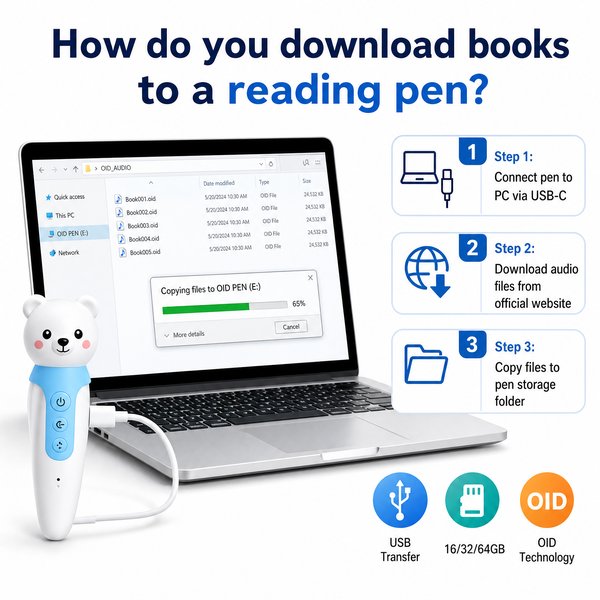
If your goal is to load new books onto a Toyvao-style children’s reading pen, the short answer is: you can only install OID‑coded book packages provided or authorized by the content provider. To add them you connect the pen to a PC with the USB‑C cable, copy the vendor-supplied book folder(s) into the pen’s internal storage (16GB / 32GB / 64GB options), safely eject, and test with the matching OID‑coded printed book. This pen is ages 3+, offers 8–12h battery life and 2–3 hours charging time, has a 3.5mm headphone jack and volume button, and does NOT support Bluetooth, OCR, translation, or generic scanning — only OID-coded books work.
Quick checklist before you start
- Confirm the physical book is OID‑coded (special printed dots/marks that match audio files).
- Have the manufacturer or authorized distributor supply the book package (audio + index files) — Toyvao can supply factory‑direct packages.
- Ensure you have the USB‑C cable and a PC/Mac with a free USB port.
- Know your pen storage: 16GB, 32GB, or 64GB available — check remaining free space before copying large libraries.
Step-by-step: How to download books to the reading pen
- Obtain the correct OID book package. Only OID‑coded content works — request the digital package from Toyvao or an authorized content partner.
- Unzip the content package on your computer if it is compressed. Toyvao usually supplies ready-to-copy folders (audio files + index mapping files).
- Connect the pen to your computer with the supplied USB‑C cable. The pen should mount as a removable drive (no installer required).
- Open the pen’s drive and look for the recommended folder (commonly “Books”, “Content”, or a vendor-specified directory). If no instruction is present, create a top-level folder called “BOOKS”.
- Copy the entire book folder(s) from your computer into that folder. Do not change internal file names unless the vendor permits it — OID mapping relies on precise filenames or index files.
- Safely eject the pen from the computer. Disconnect the USB cable.
- Open the matching printed OID book and tap the pen on a known spot (e.g., cover icon) to confirm the audio plays. Use the volume button or 3.5mm headphones for listening tests.
When it’s worth caring about / When you don’t need to overthink it — Compatibility & content
When it’s worth caring about: if you plan to update content regularly, sell bundled pen+book sets, or localize audio (different languages), you must source OID‑formatted packages from Toyvao or an authorized content partner and follow their folder/naming conventions. Also care when managing school fleets: check storage (16GB/32GB/64GB) and plan how many titles fit per device.
When you don’t need to overthink it: for single-title demos or small classroom sets where you use Toyvao’s official book packages as provided, the process is plug‑and‑copy — no software development, no OCR training, no Bluetooth pairing required.
When it’s worth caring about / When you don’t need to overthink it — File format & naming
When it’s worth caring about: if you plan custom content (OEM/ODM), confirm audio format, sampling rate, and the exact index/manifest format the pen expects. For branded deployments, Toyvao provides technical spec sheets and can accept custom audio and mapping during OEM/ODM runs (MOQ 100–500 pcs for custom units).
When you don’t need to overthink it: if you use Toyvao’s factory-supplied packages, files will be preformatted and ready-to-copy; you simply transfer folders without editing file names or formats.
When it’s worth caring about / When you don’t need to overthink it — Troubleshooting common issues
When it’s worth caring about: if the pen doesn’t play audio after copying, verify you copied the complete package (index + audio files), confirm folder location and filenames, check available storage, and confirm the printed book actually contains OID codes produced for that audio. For repeated failures, contact the supplier — Toyvao offers factory support.
When you don’t need to overthink it: if the pen plays a title intermittently, try another known-good page on the same book, check volume, and make sure the pen’s battery is charged (8–12h typical life; 2–3h charge time).
Practical sizing and storage guidance
- Storage options: 16GB / 32GB / 64GB. Choose 32GB as a balanced option for retail bundles; 64GB is best for catalog or multi-language deployments.
- Battery considerations: if pens are used all day in classrooms, plan charging cycles — average battery life 8–12 hours, recharge 2–3 hours via USB‑C.
- Accessory note: pen includes a 3.5mm headphone jack and volume adjustment button; there is no Bluetooth streaming or wireless download option.
HTML comparison table
| Feature | Toyvao Factory‑Supplied Book | Third‑party OID Book | Custom OEM/ODM Content |
|---|---|---|---|
| Compatibility | Guaranteed (pretested for Toyvao pen) | May work if formatted to OID spec | Fully custom; tested and validated during production |
| Delivery method | Ready-to-copy folder / ZIP | Depends on provider | Delivered as packaged files or preloaded on devices |
| Storage requirements | Uses pen internal storage (16/32/64GB) | Depends on audio length | Can be optimized to fit target storage |
| Support | Vendor support from Toyvao | Varies by vendor | Full integration support from manufacturer |
| MOQ (for preloaded devices) | — (single pen updates OK) | — (single files OK) | 100–500 pcs for custom OEM/ODM runs |
| Certifications | CE / FCC / RoHS / EN71 / ASTM / UN38.3 | Depends on supplier | Provided per project; Toyvao supports required certifications |
Customer Feedback Synthesis
Positive
- “Setup was plug‑and‑play — copied the folder and the pen played perfectly on the matching book.”
- “Battery lasts a full school day (8–12h) and the 3.5mm jack is great for classroom headphone management.”
- “We ordered preloaded devices for our reading program and the Toyvao factory support handled the audio mapping quickly.”
Negative
- “We tried to load a PDF and it didn’t work — had to get the correct OID package from the vendor.”
- “No Bluetooth or wireless sync — you must use a cable and a computer to transfer files.”
- “Some third‑party OID files needed renaming to match the pen’s index, which required vendor help.”
FAQ
- Q: Can I copy any ebook or PDF onto the pen?
- A: No. The pen only responds to OID‑coded printed books whose audio/index mapping is prepared to the pen’s OID spec. Generic PDFs, scanners, or OCR results will not work.
- Q: How do I transfer books to the pen?
- A: Connect the pen to a PC via USB‑C, open the mounted drive, copy the vendor-supplied OID book folder(s) into the specified directory (follow the vendor’s naming conventions), safely eject, and test with the matching printed book.
- Q: Can I stream or push books over Bluetooth or Wi‑Fi?
- A: No. This model does NOT have Bluetooth or wireless transfer — file transfer is via USB cable only. Use the 3.5mm jack or built‑in speaker for playback.
- Q: What if I need many pens preloaded with custom content?
- A: For preloaded units or customized firmware/content, Toyvao supports OEM/ODM runs with MOQs typically in the 100–500 pcs range and will assist with content packaging and certification (CE/FCC/RoHS/EN71/ASTM/UN38.3).
Final recommendations
For retailers, distributors, or school buyers who need reliable, child‑friendly audio reading solutions: use vendor‑supplied OID packages or order preloaded devices to avoid compatibility headaches. If you need bulk preloading, multi‑language content, or branded packaging, factory direct OEM/ODM through Toyvao shortens development and ensures files are formatted correctly for the pen’s OID system.
Contact Toyvao (factory direct)
For authorized OID book packages, preloading, OEM/ODM inquiries (MOQ 100–500 pcs), technical specs, or test packages contact Toyvao: WhatsApp +86 186 8106 4480, email sales@toyvao.com, or visit https://toyvao.com. Reach out to get sample book packages and step‑by‑step transfer instructions for your deployment.
