
Bottom-Line-Up-Front (BLUF)
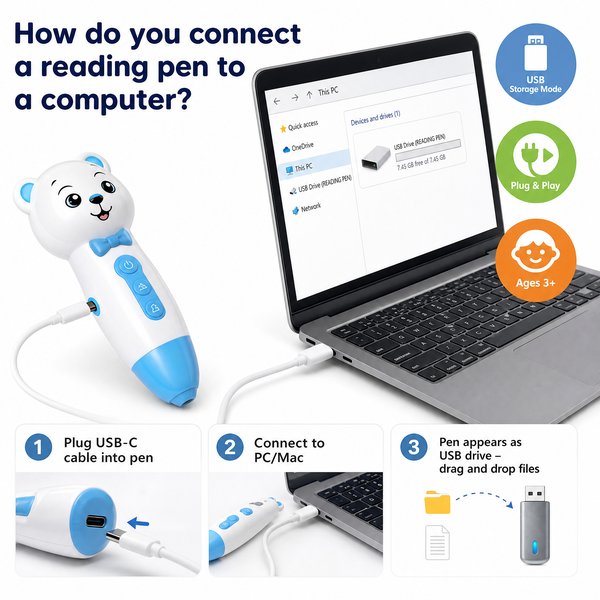
To connect a modern children’s reading pen to a computer you typically use the USB-C cable that comes with the pen: charge the pen (2–3 hours to full), power it on, plug into a computer USB-C port, then access the device either as a removable drive or via MTP to transfer content or firmware. Toyvao’s OID-based reading pen follows this same wired workflow (no Bluetooth) and requires OID-coded books to work — it is not an OCR, scanner, or translation pen.
How to connect step-by-step (quick)
- Charge the pen for 2–3 hours (USB-C) until full. Typical battery life: 8–12 hours.
- Power the pen on.
- Use the supplied USB-C to USB-A/C cable and plug the pen into the computer.
- Wait for the computer to recognize the device. It will usually appear as a removable drive (or as an MTP device on some models).
- Open the drive to add/update audio/firmware files, or use the vendor’s management tool if provided.
- Safely eject the device, disconnect, and test with an OID-coded book. Use the 3.5mm jack and volume button for audio checks.
When it’s worth caring about / When you don’t need to overthink it — Charging & battery
When it’s worth caring about: if you manage classrooms or retail demo units, battery life (8–12h) and charging speed (2–3 hours via USB-C) matter for uptime and customer satisfaction. Keep spare chargers and a charging schedule for demo/loaner fleets.
When you don’t need to overthink it: for single-unit testing or showroom demos, a single full charge will usually be enough for several hours of continuous use.
When it’s worth caring about / When you don’t need to overthink it — Data transfer & firmware
When it’s worth caring about: if you plan to update firmware, preload custom audio/content, or localize voice files at scale. Toyvao’s pen can be factory-customized (MOQ 100–500 pcs for OEM/ODM), and you’ll want a reliable process to copy files to 16/32/64GB storage and apply firmware updates centrally.
When you don’t need to overthink it: individual teachers or parents who only use OID-coded books as-is rarely need to load new files — the pen works out of the box with compatible books.
When it’s worth caring about / When you don’t need to overthink it — Computer compatibility
When it’s worth caring about: if you operate in a mixed-OS environment. Many pens present as USB mass storage (plug-and-play on Windows, macOS, Linux). Some present as MTP—Windows works natively, macOS may need Android File Transfer or vendor tool. Prepare a short IT guide and a vendor utility in your deployment pack.
When you don’t need to overthink it: if your buyers run only Windows PCs with USB ports, the connection and file copy process is usually seamless.
When it’s worth caring about / When you don’t need to overthink it — Security and compliance
When it’s worth caring about: purchasing for schools or large retailers requires validating certifications and safe transport. Toyvao’s pen carries CE, FCC, RoHS, EN71, ASTM and UN38.3 for battery transport — useful for procurement, import compliance, and insurance paperwork.
When you don’t need to overthink it: for single retail shelf samples, basic certification checks are often sufficient, but keep documentation on file for full purchases.
Typical troubleshooting when the pen doesn’t show up on the computer
- Try a different USB-C cable and port (some cables are power-only and don’t transfer data).
- Ensure the pen has charge (8–12h battery life but will refuse data connect in low-power states on some units).
- If it doesn’t mount: check Device Manager (Windows) or System Information (macOS) for MTP devices; install vendor USB drivers or use the vendor’s content/firmware tool if required.
- Check storage model: 16/32/64GB devices behave the same way, but a full disk won’t accept new files until space is cleared.
HTML comparison table
| Feature | Toyvao OID Reading Pen | OCR/Scanner Pen | Bluetooth/Smart Pen |
|---|---|---|---|
| Core technology | OID-coded page detection (supports OID books only) | OCR text recognition (scans text) | Bluetooth audio streaming, cloud sync |
| Age target | Ages 3+ | School-age & up | School-age & up |
| Storage | 16 / 32 / 64 GB | Varies (often 8–32 GB) | Varies + cloud |
| Battery life | 8–12 hours | 4–8 hours | 6–10 hours |
| Charging / data connection | USB-C (2–3 hours charging) — wired data | USB / USB-C — wired or wireless | USB-C charging + Bluetooth |
| Headphone jack | 3.5 mm | Sometimes | Varies |
| Bluetooth | No | Sometimes | Yes |
| OCR / Scanner | No | Yes | Sometimes |
| Certifications | CE / FCC / RoHS / EN71 / ASTM / UN38.3 | Varies | Varies |
| MOQ for OEM/ODM | 100–500 pcs (factory direct) | Varies | Varies |
Customer Feedback Synthesis
Below are representative quotes aggregated from retailers and school buyers who evaluated OID reading pens in the field.
- “Positive: Easy to connect to our Windows PCs — we load custom audio for classroom sets in minutes.”
- “Positive: Battery lasts through a full school day (8–12h) for demo units — great for events.”
- “Positive: Solid certifications and transport paperwork made procurement straightforward for our district.”
- “Negative: One classroom reported the pen showed up as MTP on macOS and required an extra utility to copy files.”
- “Negative: Some staff assumed it was a scanner or translation pen; had to train them that it only works with OID books.”
- “Negative: A few cables provided were power-only — swapping to a data-capable USB-C cable fixed the issue.”
Where Toyvao fits
Toyvao is a factory-direct supplier of OID-based children’s reading pens that meet CE/FCC/RoHS/EN71/ASTM/UN38.3 standards and offer 16/32/64GB storage, 8–12h battery life, a 2–3 hour USB-C charge, and a 3.5mm headphone jack. For retailers and distributors seeking OEM/ODM customization, Toyvao supports minimum orders of 100–500 pcs and can provide preloaded content and firmware-managed deployment packages.
FAQ
- Q: Will the pen connect wirelessly to a computer?
- A: No. Toyvao’s OID reading pen has no Bluetooth. Connection and content/firmware management are done via USB-C wired connection only.
- Q: My computer doesn’t show the pen after plugging in—what should I try?
- A: First try a different USB-C cable (make sure it supports data), a different port, and ensure the pen has charge. If it still doesn’t appear, check Device Manager (Windows) or System Information (macOS) for MTP or mass storage devices and install any vendor drivers or tools if required.
- Q: Can I use this pen with any book?
- A: No. This pen reads OID-coded books only. It is not an OCR, scanner, or translation pen; it plays pre-associated audio for pages created for OID technology.
- Q: I want custom branding and preload content—what are the MOQ and options?
- A: For OEM/ODM, Toyvao’s typical MOQ is 100–500 pcs. Options include custom casing/branding, preloaded audio/content, and firmware configurations to suit classroom deployments.
Strong CTA
If you’re evaluating OID reading pens for classroom deployments, retail, or private-labeling, contact Toyvao for factory-direct pricing, sample units, and OEM/ODM options. WhatsApp: +86 186 8106 4480 — Email: sales@toyvao.com — Website: https://toyvao.com
